Our Story
I'd be researching in one browser window, talking to the AI in a second, and building in a third. […] What I wanted was a place for that process to live, so I could stop holding it together by hand.
— The founder of EdStratum Labs
NXGen Learning Studio keeps the plan, the pages and the proof of alignment in one place, so instructional designers stop rebuilding context in three windows.
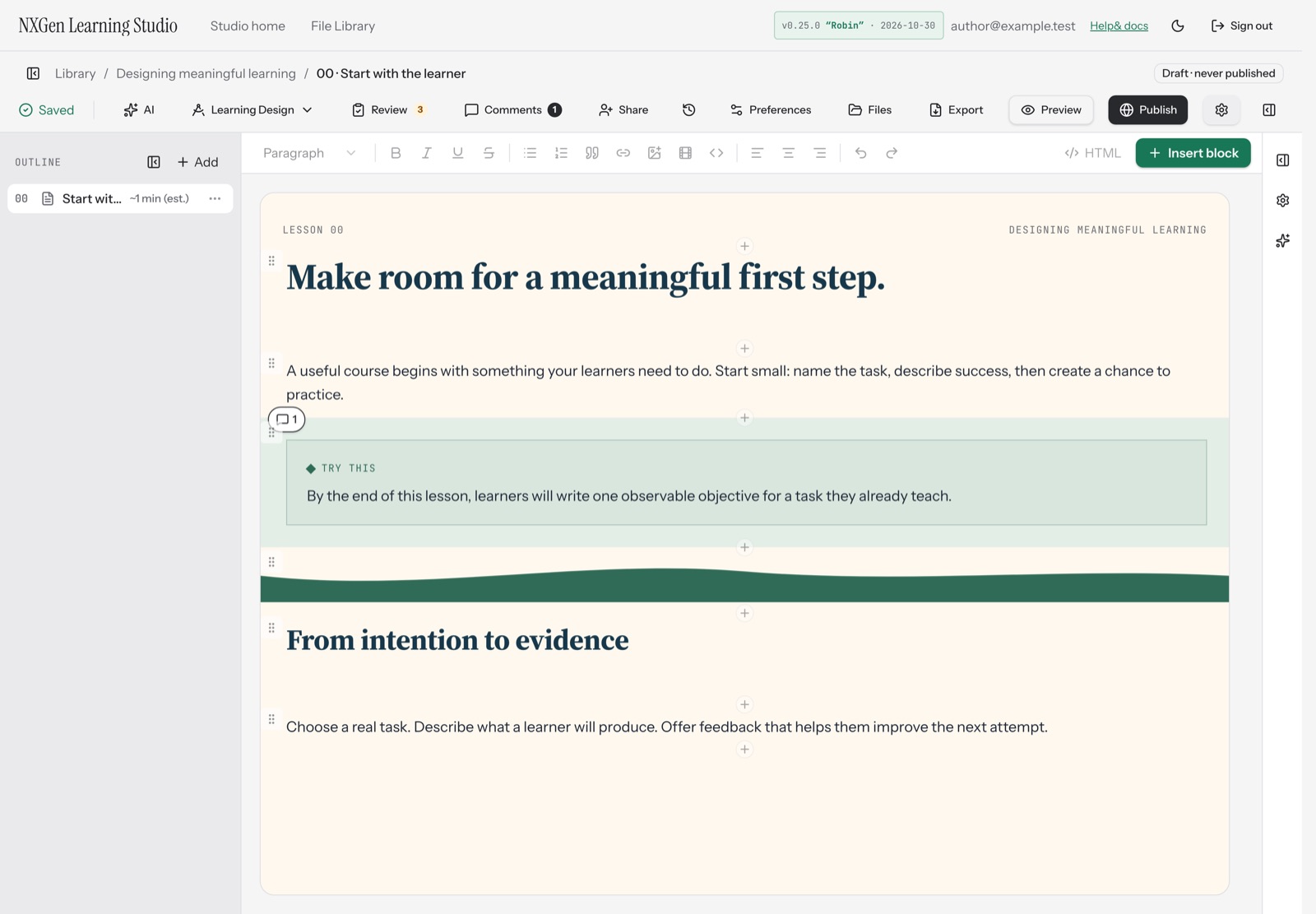
The plan, the alignment and the finished pages live together, so the reasoning behind a course travels with it.
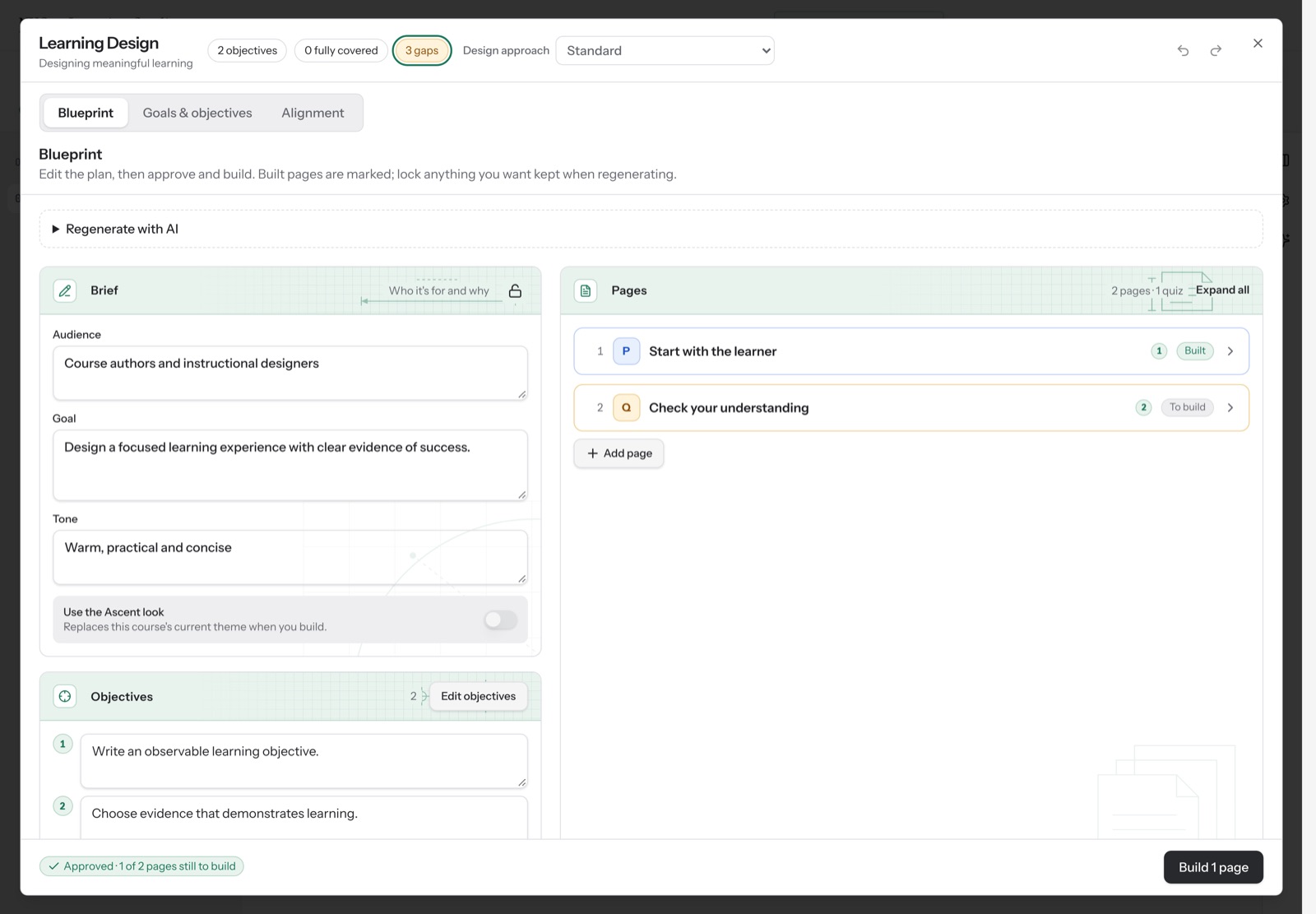
Audience, goal, objectives and proposed pages are reviewed before anything is built. The plan stays connected to the content.
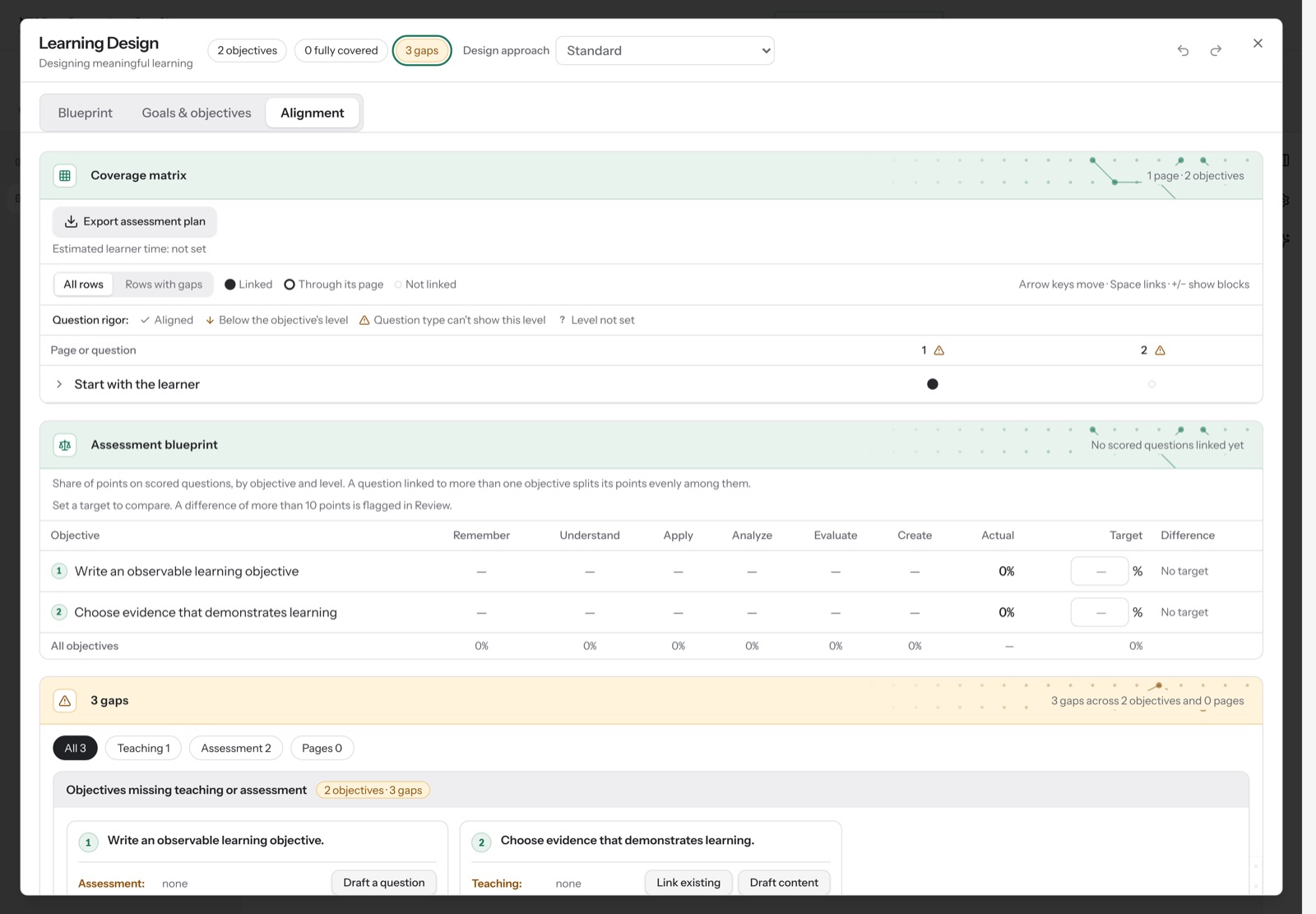
See which pages and questions teach and check each objective. Gaps are easy to spot.
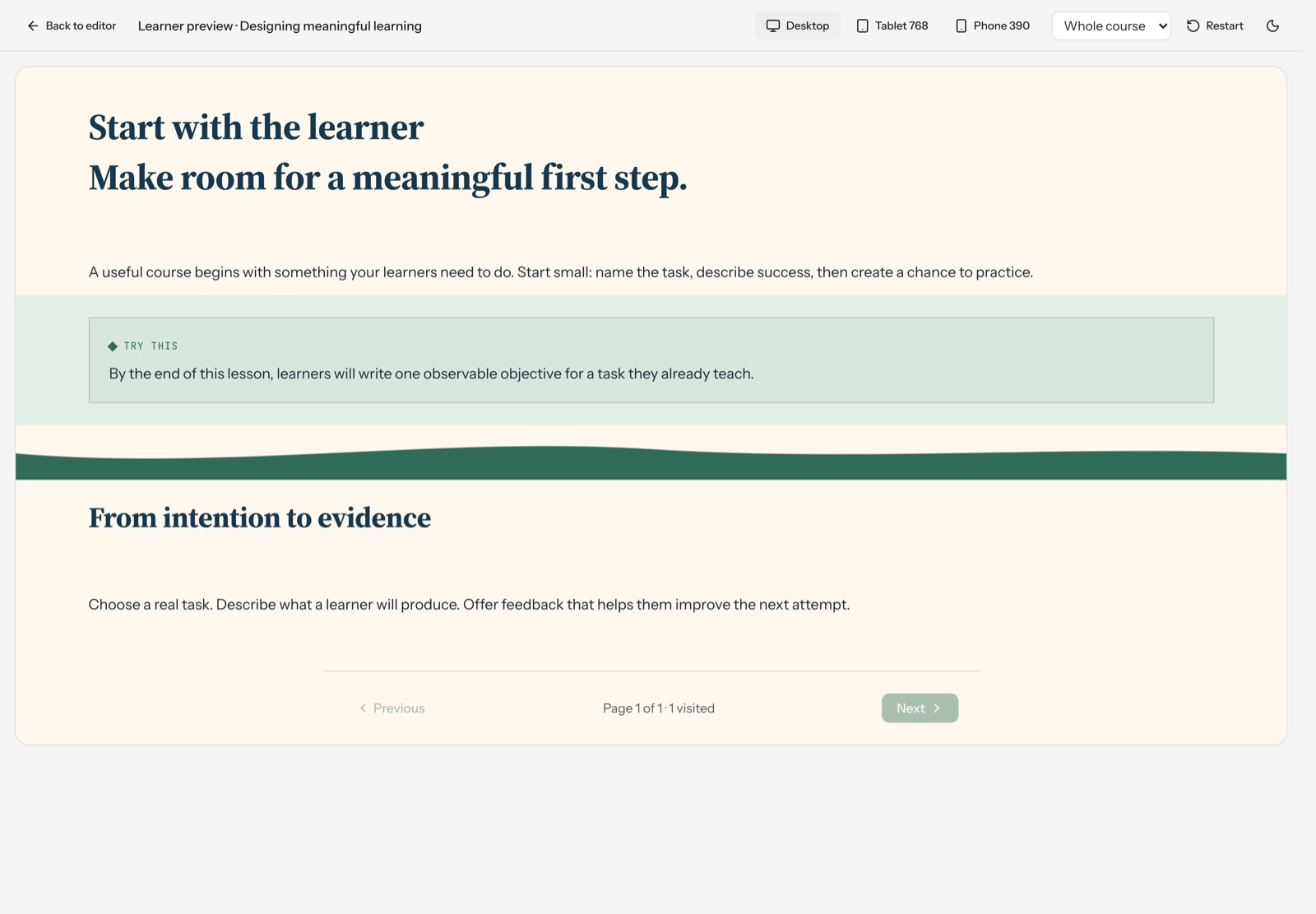
Learners get a clean, accessible page. The preview uses the same renderer as the editor so what you check is what learners get.
Whether you work alone or with a course team, the studio keeps the plan and the pages in one place.
Move from analysis to development without losing the thread. Keep your source material and design decisions in one place.
Support faculty course design and program review with clear evidence of how outcomes, activities and assessment connect.
Build consistent, high-quality training that stays aligned to business goals and performance requirements.
Connect AI agents through the MCP server to read and edit courses using the same validated operations as the UI.
The authoring sequence is designed to keep you in the loop, not just at the end.
Define the audience, goals and objectives before building. Use AI to draft a blueprint you can refine.
Read moreCreate pages with interactive blocks. Use AI Assist for focused rewrites and drafting.
Read moreVerify alignment, check for bias and reading level, and review AI changes with clear markers.
Read moreExport a native package or connect to your LMS via Canvas LTI 1.3 Advantage.
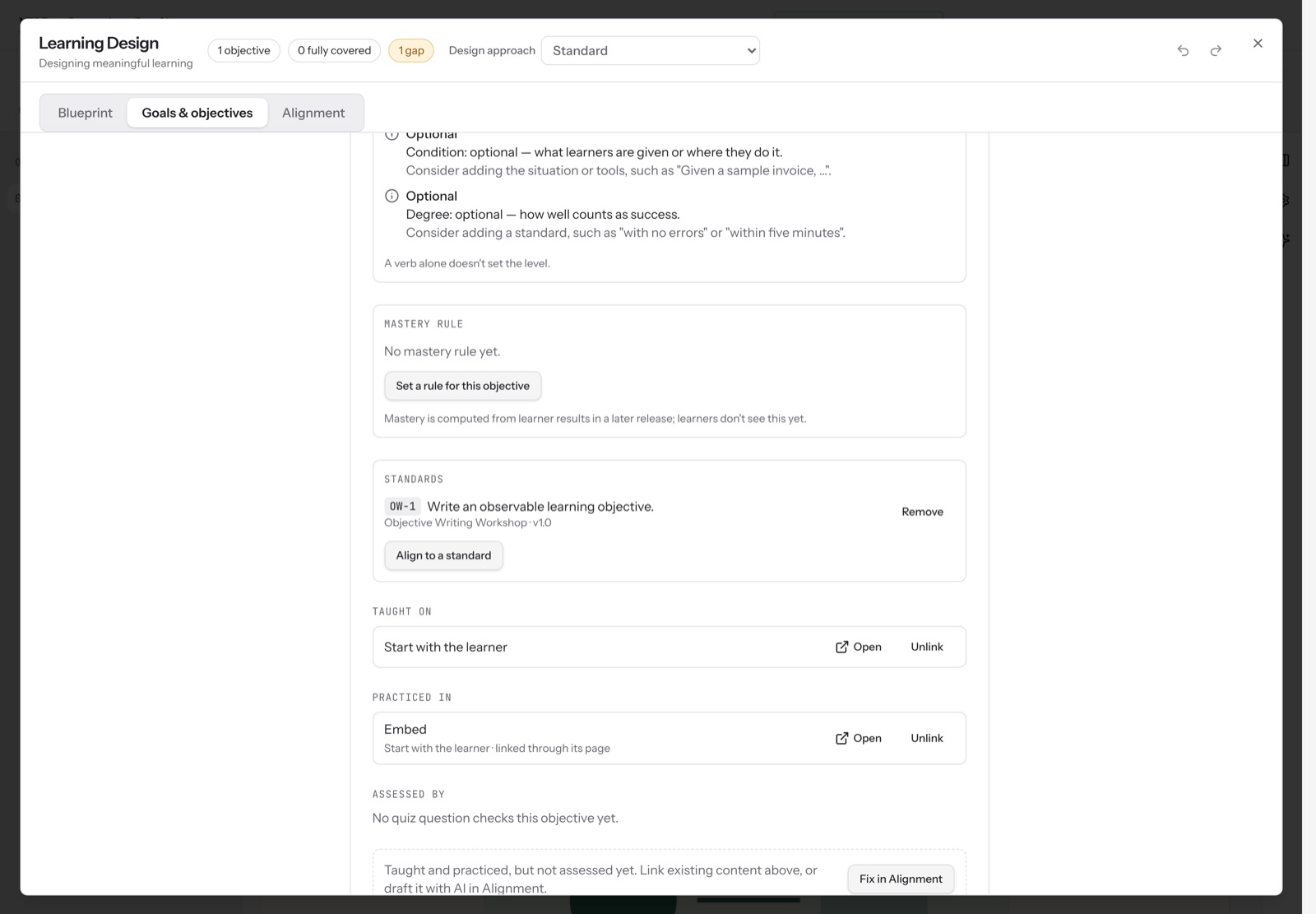
Read moreStart with a clear structure in the Learning Design workspace, featuring Blueprint, Goals and objectives, and Alignment tabs.
Build interactive experiences on a flexible canvas with a rich library of blocks.
Ensure your course meets your standards with automated and AI-supported checks.
Deliver your course where your learners are.
See how a course comes together, from the first prompt to the final export.
Describe your topic, audience, and what you want learners to achieve. A few sentences are enough to start.
The EdStratum Labs LLM proposes a structure, including a goal, objectives, and a sequence of pages.
Review the plan, make adjustments, and click Build. The studio generates the initial pages and blocks.
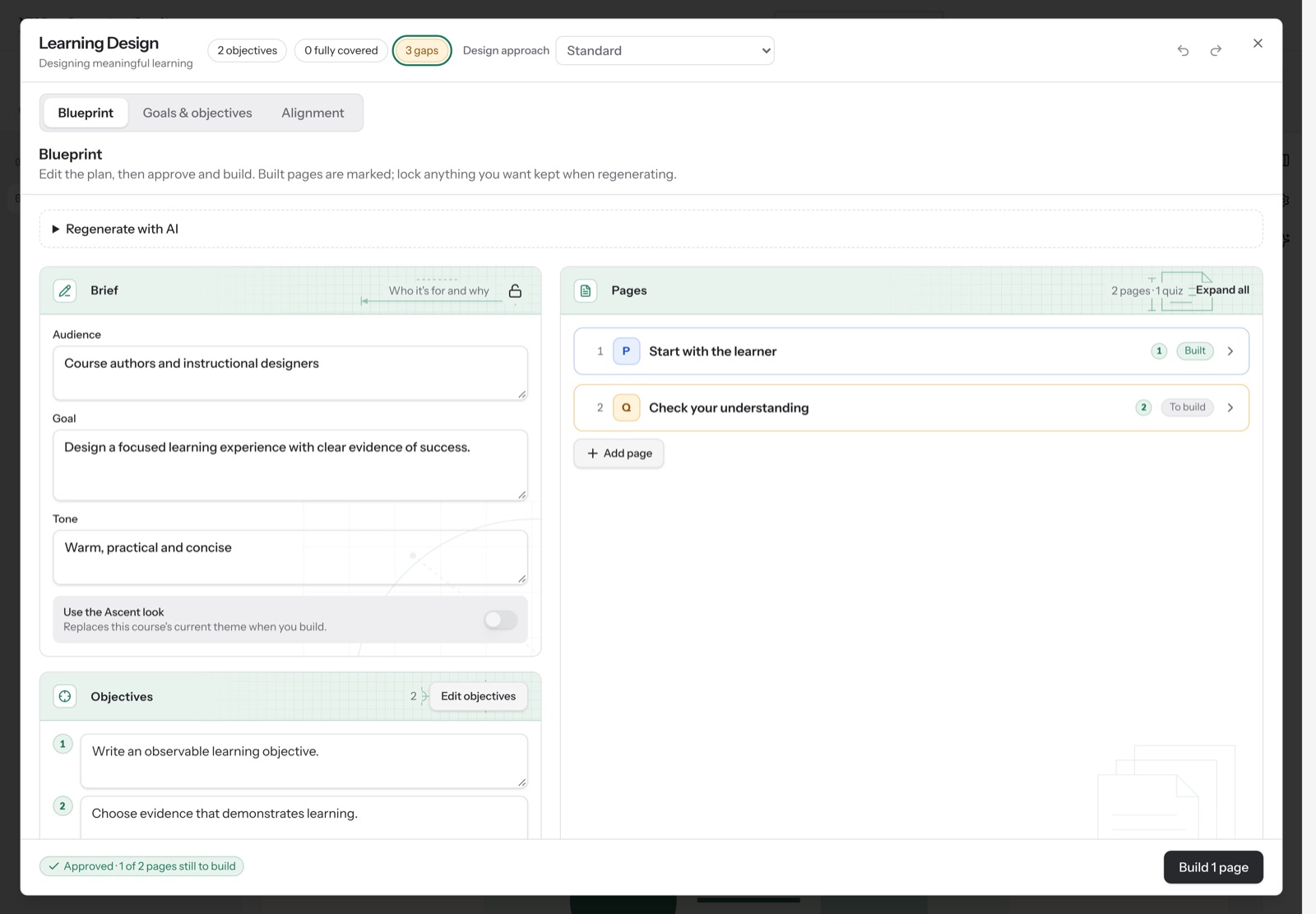
Refine your objectives and classify them using Bloom's or DOK to ensure the right level of rigor.
Add content, interactive elements, and assessment questions. Use AI Assist to help with the heavy lifting.
Use the alignment matrix to ensure every objective is taught and assessed. Flag and fix any gaps.
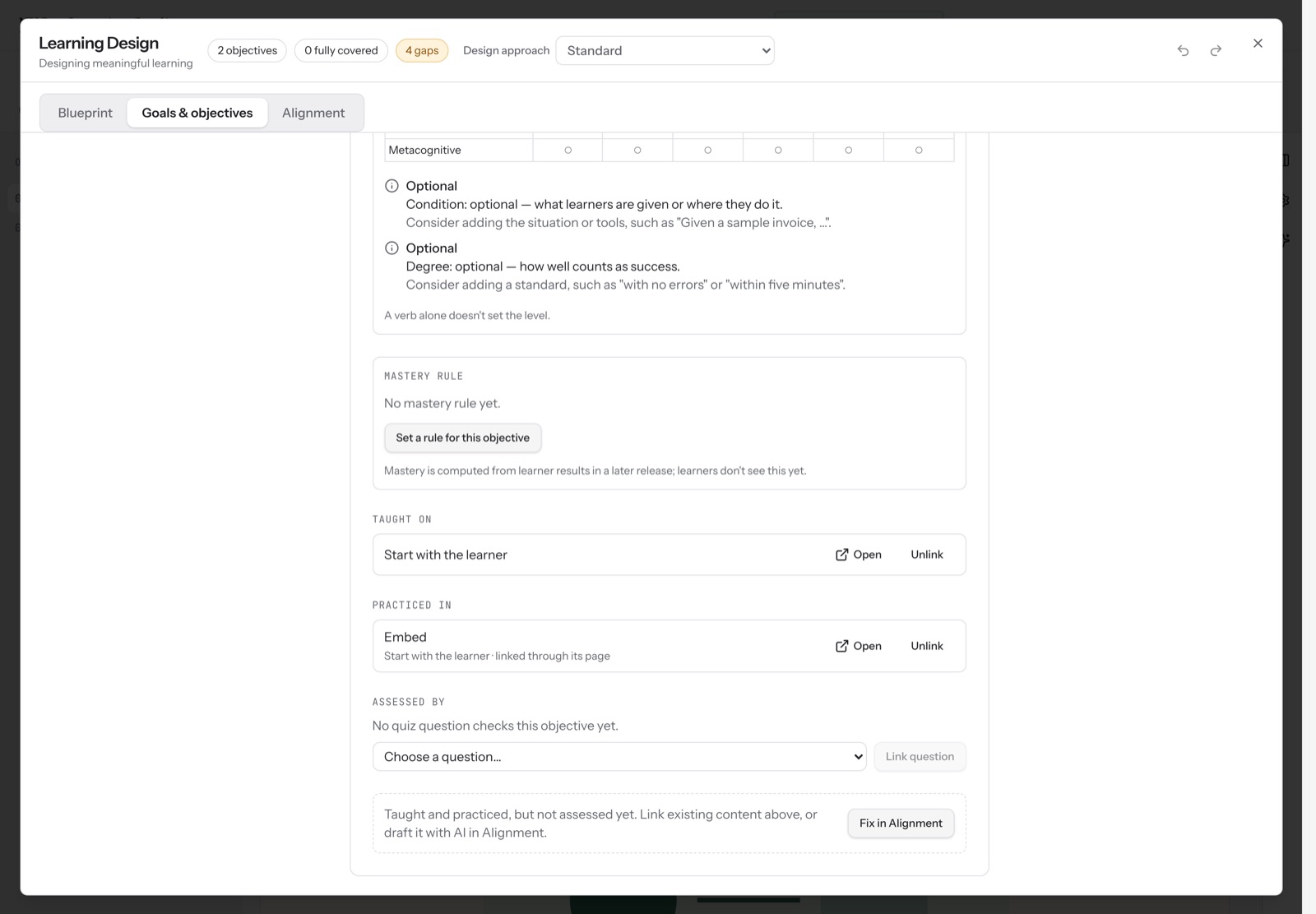
Download your course as a native package or connect it to your LMS with grade passback.
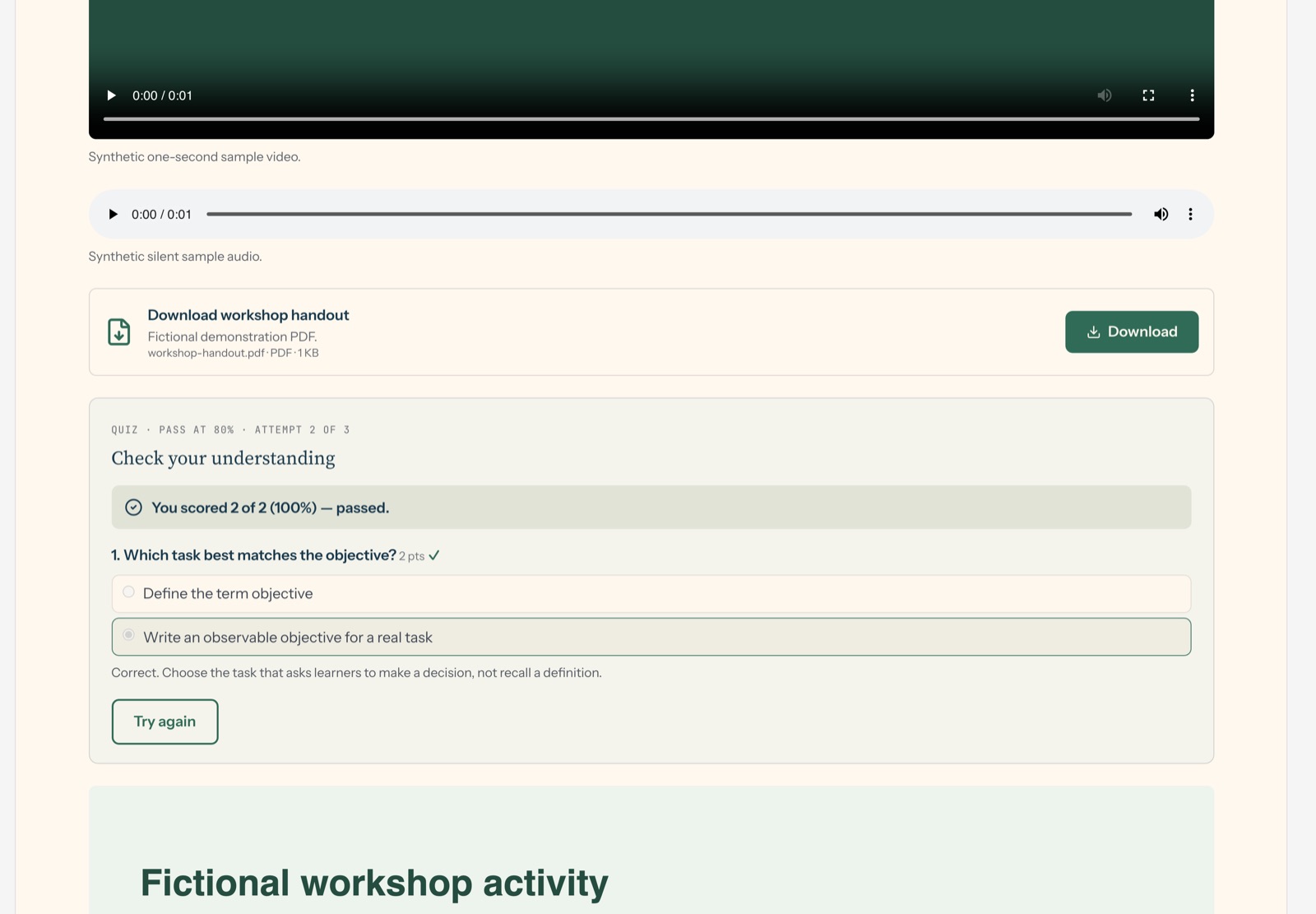
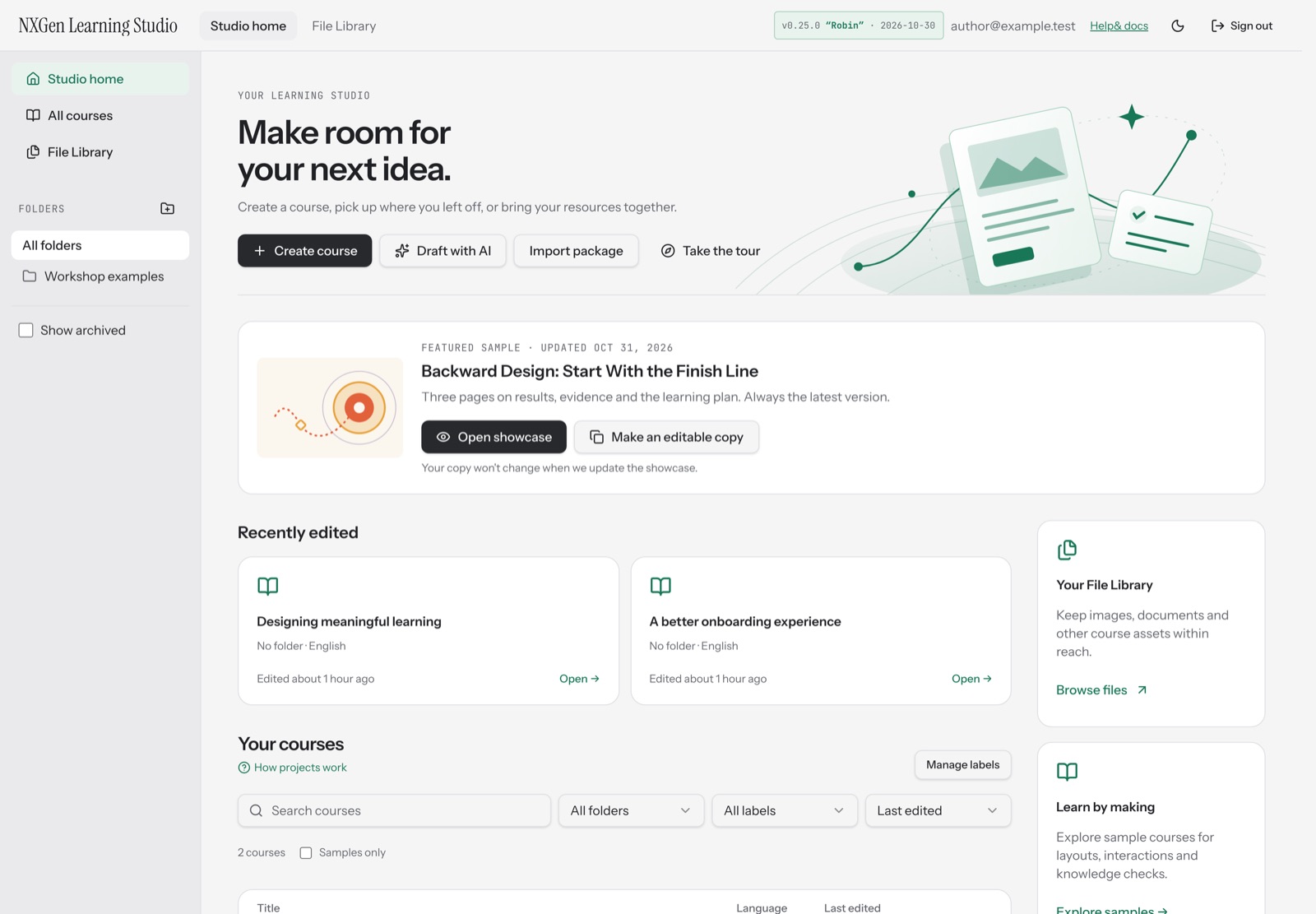
Blocks, assessments, AI help and templates, without leaving the plan behind.
Start an editable draft from a prompt or document. Use AI Assist for selected text or blocks, and review suggestions before applying them.
Build quizzes with multiple choice, true/false, short answer, matching, ordering, and fill-in-the-blank. Add rubrics with criteria and performance levels linked to objectives.
Start from built-in templates and presets, then apply your brand palette. Live contrast checks flag color pairs that fall short of WCAG AA.
Manage your images, video, and audio in a private library with secure, signed links.
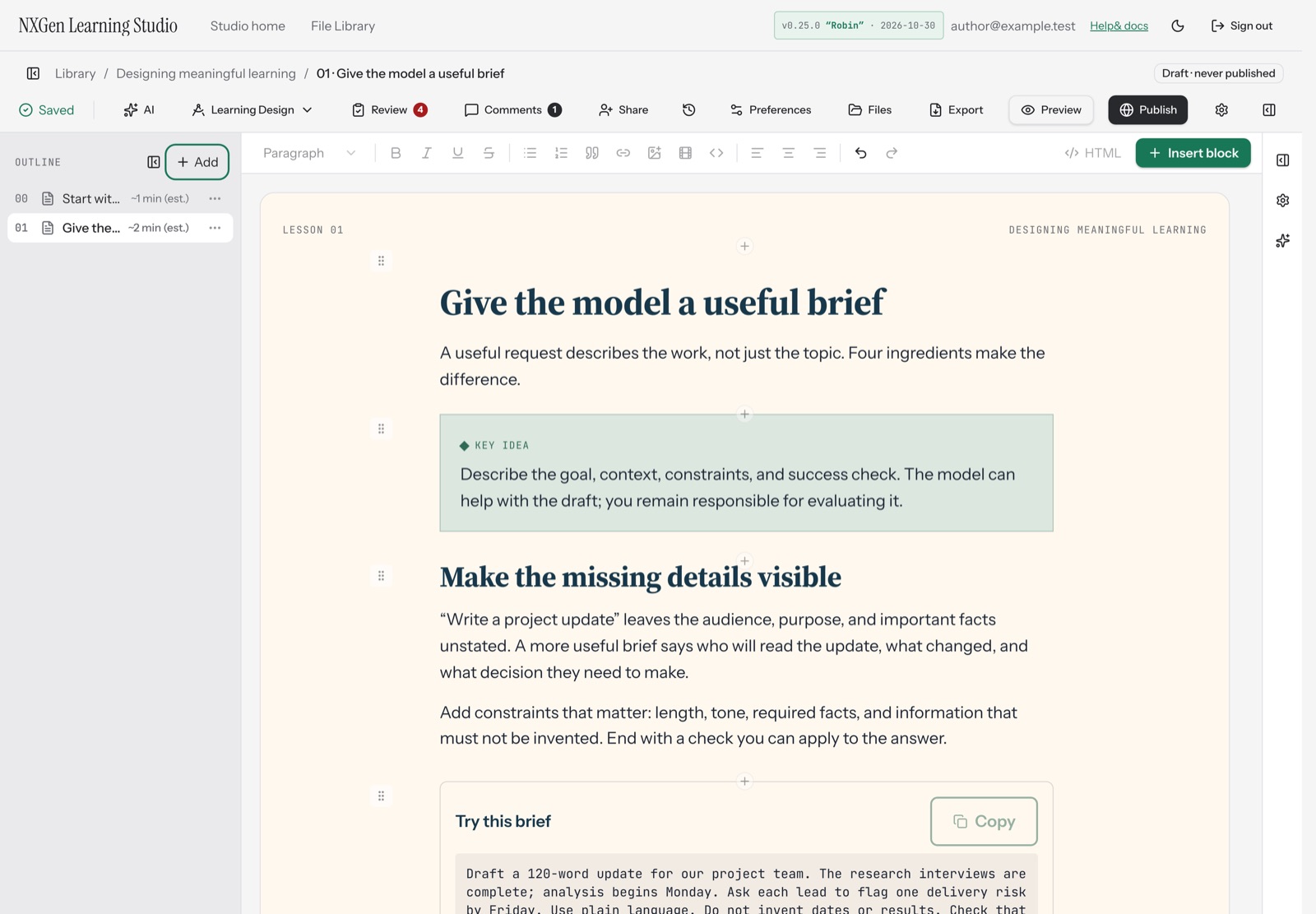
Contrast checks are a starting point. The help center lists the author checks to run before you publish.
Import CASE frameworks, tag objectives to standards, and see coverage as you build.
Frameworks such as state standards or competency models come in as 1EdTech CASE 1.1 packages. Align objectives to their items, classify them with Bloom's or DOK, then export the objectives as CASE 1.1 or the alignment as CSV. (CASE is a 1EdTech standard; 1EdTech doesn't endorse the studio.)
Alignment gives you something specific to check. It can't make the call for you.
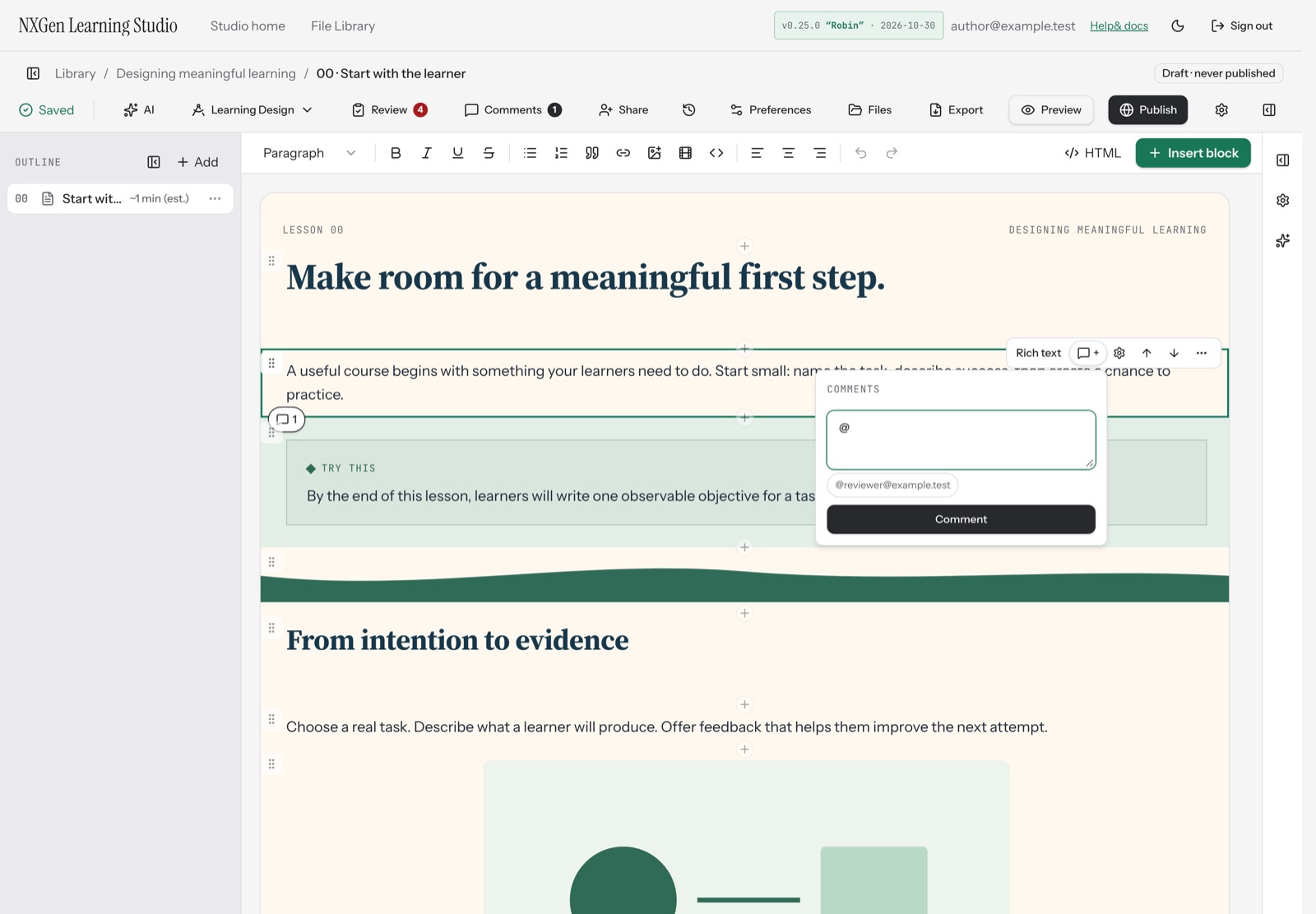
Invite reviewers and work together without losing control of your content.
Reviewers can pin threaded feedback to any block on the page. Use @mentions to loop in the right people.
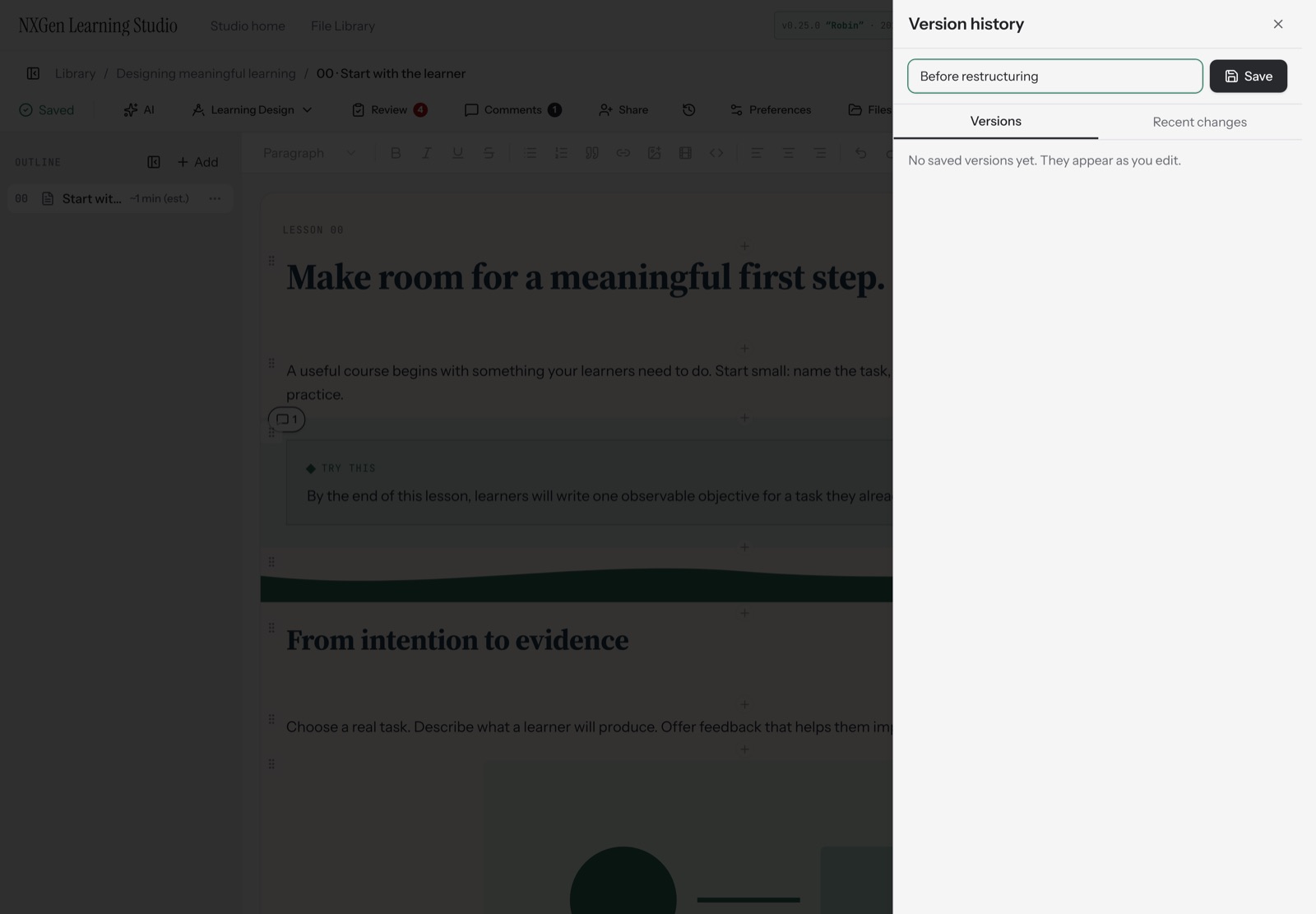
Review earlier versions of the course and restore one when you need it.
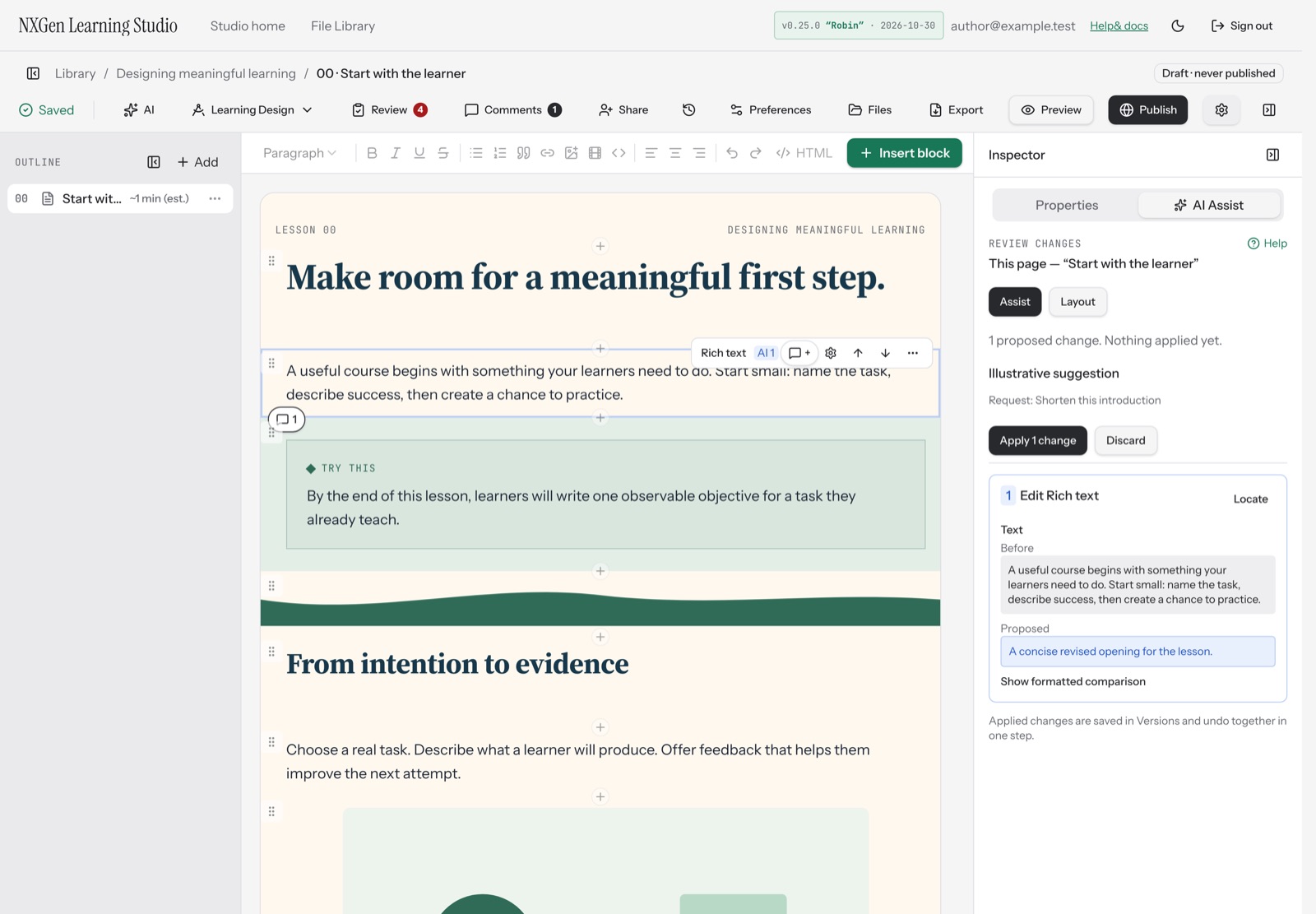
Every AI suggestion stays a suggestion until you click Use. Review changes with clear markers on the canvas.
Connect your own tools through a validated, versioned API.
The MCP server at /mcp and a REST API let agents act as the signed-in user. Every edit is a validated, versioned operation with an idempotency key and dry-run support.
AI suggestion tools return operations and save nothing until applied, keeping the author in control of every change.
I'd be researching in one browser window, talking to the AI in a second, and building in a third. […] What I wanted was a place for that process to live, so I could stop holding it together by hand.
Tell us what you'd like to build in NXGen Learning Studio.
We'll reply by email.